By: Jeff Hirz
Is WordPress SEO friendly? WordPress can work very well for SEO, but it is not automatically search-friendly just because the CMS is popular, open source, and easy to publish with. The platform gives site owners useful controls, and plugins can make many SEO fields easier to manage. The problems start when those controls are misunderstood, duplicated, buried inside themes, slowed down by plugins, or left to a green-light score instead of an actual SEO plan.
That is why the better question is not simply “Is WordPress good for SEO?” The better question is whether your WordPress site gives Google a clean version of each important page, fast templates, crawlable resources, accurate metadata, useful internal links, and content that answers the searcher’s question better than the pages around it.
This guide preserves the original WordPress SEO issues from this article, then updates the fixes for current WordPress and Google guidance. If your site needs deeper help after the checklist, OuterBox provides WordPress SEO services for technical cleanup, content, analytics, and organic growth planning.
Is WordPress SEO Friendly? Issues To Check First
Start with the WordPress SEO problems that can affect crawling, indexing, rankings, and conversions across many pages:
- The site is accidentally set to discourage search engines.
- SEO plugins are treated as strategy instead of controls.
- Plugins, themes, page builders, CSS, JavaScript, or media slow key templates.
- Domain versions, redirects, canonicals, and sitemaps send mixed URL signals.
- Robots.txt is used when noindex, canonical tags, redirects, or password protection would be more appropriate.
- Permalink, category, tag, archive, or custom post type URLs create thin or duplicate pages.
- Internal links still point through old redirects or broken URLs.
- Heading tags, titles, meta descriptions, schema, alt text, and body copy are controlled by weak templates.
The highest-risk issue is usually the one that repeats. One weak blog title is a small fix. A theme that prints multiple H1s across every service page, a plugin that slows every template, or a staging noindex setting that reaches production can damage the whole site.
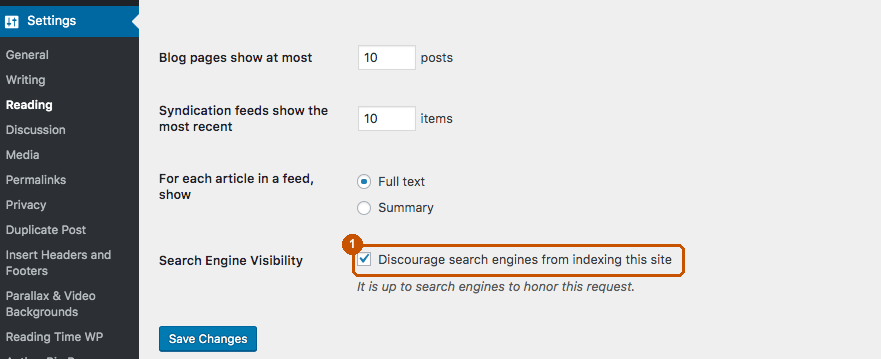
WordPress Search Visibility Can Block Indexation
The original article used WordPress’s search visibility setting as the opening example, and that example still matters. In the WordPress Reading settings, the Discourage search engines from indexing this site box asks search engines not to index the site. WordPress.org documents that, since WordPress 5.3, this setting can generate a noindex,nofollow robots meta tag in the page head when the theme uses wp_head.
That detail matters because the issue is not only “robots.txt blocks crawlers.” A WordPress site can keep pages out of Google through page-level indexing signals, theme behavior, plugin settings, or environment settings that were useful during development but dangerous after launch.
Check this first after a redesign, migration, staging launch, domain move, or plugin change:
- In WordPress, review Settings, then Reading, then Search Engine Visibility.
- In the browser source or rendered HTML, confirm production pages do not output an unintended
noindextag. - In Google Search Console, inspect important URLs to see whether Google can crawl and index the page.
- Check whether your SEO plugin, theme, or page-level controls add their own robots directives.
WordPress.org also notes that the setting is a request, and it is up to search engines to honor it. That is another reason to verify the rendered page, not just the admin checkbox.

WordPress SEO Plugins Help With Controls, Not Strategy
Plugins such as Yoast SEO can be useful. They make it easier to manage title tags, meta descriptions, breadcrumbs, canonical tags, XML sitemaps, robots settings, previews, and other fields that many site owners do not want to edit in code.
The problem starts when the plugin score becomes the SEO strategy. A green light cannot decide whether the page targets the right query, whether the internal links are useful, whether the title competes with another page on your own site, or whether the content deserves to rank. It also cannot know whether a section should be rewritten, merged, redirected, noindexed, expanded, or left alone.
Use SEO plugins for controls:
- Set page titles and meta descriptions.
- Manage canonical tags when the default is wrong.
- Generate or configure XML sitemaps.
- Control breadcrumbs and schema settings.
- Preview how a snippet may appear.
- Add redirects when your workflow supports them.
Do not use SEO plugins as the final judge for keyword targeting, content quality, internal linking, or technical architecture. The plugin can tell you whether a focus keyphrase appears in obvious places. It cannot tell you whether that keyphrase is the right target for the page, or whether the page is competing with a stronger service page elsewhere on your site.
That distinction matters because SEO in WordPress can mean two different things. A site owner may need to diagnose crawl, indexation, template, plugin, or performance problems first. If the issue requires implementation support, a WordPress SEO services team can help turn those findings into a working plan.
WordPress Site SEO Still Depends on Speed and Core Web Vitals
WordPress performance problems often come from the parts of the site that made publishing easy in the first place: plugins, themes, page builders, tag managers, sliders, fonts, third-party scripts, large images, and CSS or JavaScript that loads on pages that do not need it.
Google’s current Core Web Vitals focus on loading performance, responsiveness, and visual stability. The named metrics are Largest Contentful Paint, Interaction to Next Paint, and Cumulative Layout Shift. In plain English, the page should load its main content quickly, respond quickly when someone interacts with it, and avoid shifting elements around while the visitor is trying to read or click.
The old render-blocking resources example still belongs here. If CSS or JavaScript must load before the browser can render key content, the page may feel slow and test poorly. WordPress sites often collect this problem over time as teams add analytics tags, popup tools, form plugins, review widgets, ad scripts, chat tools, page-builder modules, and theme features that are not needed on every page.

Plugins deserve special attention. A plugin may solve one task while adding database queries, scripts, stylesheets, external calls, or maintenance risk. When a plugin update conflicts with a theme or another plugin, the SEO problem can become a broken layout, missing content, slower templates, or crawlable error pages.
Themes and page builders can create similar issues. A theme designed mainly for visual flexibility may load large CSS files, duplicate components, unnecessary scripts, or heading structures that look fine on screen but are messy in the HTML. Google’s SEO Starter Guide notes that Google should ideally see a page the same way an average user does, which means important CSS and JavaScript resources need to be accessible.
Good WordPress SEO work usually includes performance triage:
- Test important templates, not only the homepage.
- Separate field data from one-off lab scores.
- Remove unused plugins before trying to tune around them.
- Load scripts only where they are needed.
- Compress and size images correctly.
- Review theme and page-builder output for repeated CSS, JavaScript, and layout shifts.
- Re-test after plugin, theme, and WordPress core updates.
For deeper performance and crawl issues, a technical SEO review is usually more useful than another plugin setting.

Crawlability Problems Start With URL Signals
The original article called this section “Crawability.” The better term is crawlability, and the issue is broader than whether Google can request a page. Google also needs consistent signals about which URL should be indexed, which version is canonical, which links matter, and which pages belong in the sitemap.
WWW, Non-WWW, HTTP, and HTTPS Versions
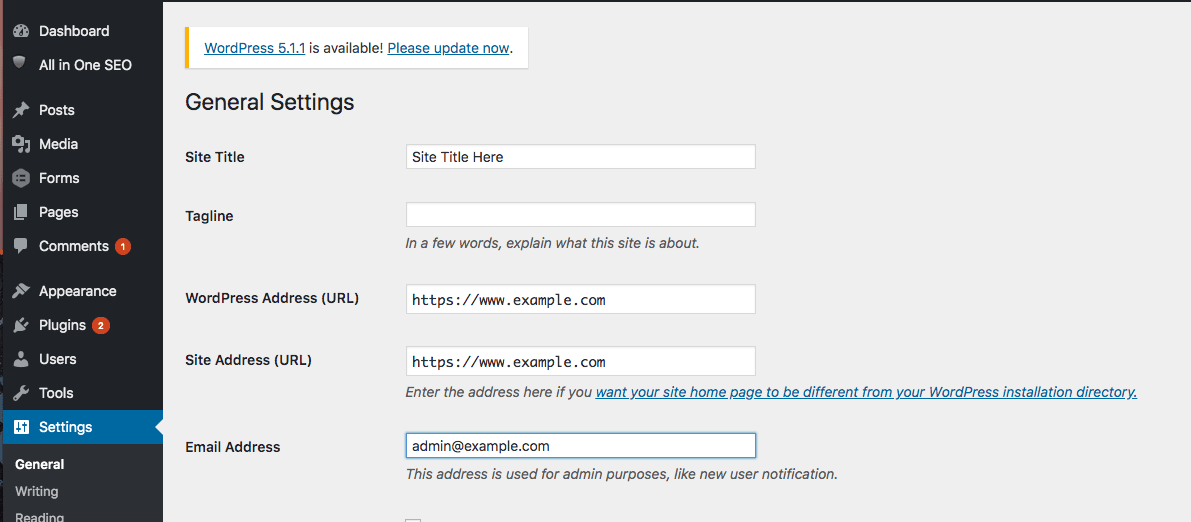
Every public version of the site should resolve to one preferred version. If http, https, www, and non-www versions show the same content without clean redirects, search engines may see duplicate versions of the same page.
Google’s canonical documentation lists redirects and rel="canonical" annotations as strong canonicalization signals, while sitemap inclusion is a weaker signal. Those signals can stack. A clean WordPress setup usually uses redirects, canonical tags, internal links, and sitemap URLs that all point toward the same preferred URL.
Redirected Internal Links
Redirects are necessary during migrations, slug changes, product cleanup, and site rebuilds. They are not a reason to leave old internal links in place forever.
If a WordPress page links to an old URL that redirects to the current page, the visitor may still land in the right place. The cleaner SEO fix is to update the source link so internal signals point directly at the preferred URL. This is especially important after category changes, permalink changes, HTTP to HTTPS moves, or content migrations.
Broken Internal Links
Broken links are common on WordPress sites because posts, pages, categories, tags, media, and custom post types can all move independently. Plugins can help find some of these issues, but a crawl with a tool such as Screaming Frog is often more reliable because it shows the status code, source page, anchor text, and destination at scale.
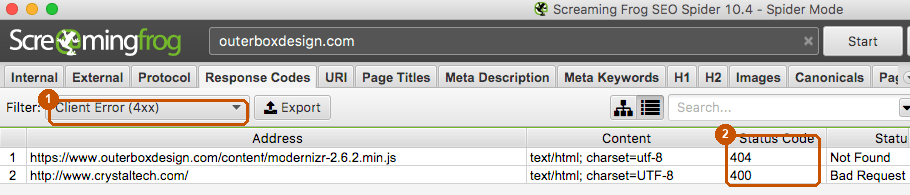
Fixing broken links is not only a user-experience task. It also protects crawl paths to pages that should receive internal authority. For article clusters, review older posts that still drive traffic, because those posts often contain outdated links to services, case studies, or resources.
XML Sitemaps
WordPress and SEO plugins can generate XML sitemaps, but the sitemap should not become a dumping ground for every public URL. It should list the canonical pages you actually want search engines to discover and revisit.
A sitemap does not fix weak internal linking. It also does not override bad canonical tags, accidental noindex directives, or redirect chains. Treat it as a discovery support file, then make sure the URLs in the sitemap match the URLs used in navigation, body links, canonical tags, and redirects.
Robots.txt, Noindex, and Canonical Tags
Robots.txt is often misunderstood. Google’s robots.txt documentation says the file tells crawlers which URLs they can access, mainly to manage crawler traffic. It is not the mechanism for keeping a normal web page out of Google Search. If a page should not appear in Search, use noindex or password protection.
Canonical tags do a different job. A canonical tag helps identify the preferred version among duplicate or similar pages. It should not be used as a substitute for fixing a page that should be redirected, improving a page that should be indexable, or noindexing a page that should stay out of search results.
The safe rule is simple:
- Use redirects when a URL has moved and should send users to a replacement.
- Use canonical tags when similar accessible pages need a preferred version.
- Use noindex when a page can be crawled but should not appear in results.
- Use robots.txt when crawl access needs to be managed.
- Use sitemaps to reinforce the canonical URLs that should be discovered.
URL Structure
WordPress permalink settings can create clean URLs, but the site can still create messy patterns through categories, tags, author archives, date archives, search pages, pagination, parameters, and custom post types.
Before changing URL structure, decide whether the current pages already rank, whether redirects are needed, and whether the new structure will create duplicate paths. Do not change slugs just because they could be shorter. Once a page is published and earning signals, URL changes need a real migration reason.
On-Page Optimization Breaks at the Theme and Template Level
On-page SEO in WordPress is not only what appears in the editor. It is also what the theme, blocks, custom fields, page builder, plugins, and templates print around that content.

Heading tags are a common example. A page may look visually correct while the HTML has two H1 tags, skipped heading levels, repeated module headings, or decorative text marked as a heading. Search engines use headings to understand page structure, and readers using assistive technology depend on that structure too.
Title tags and meta descriptions can also fail at the template level. Some themes or plugins generate titles from post names, categories, pagination states, or sitewide patterns. That can create duplicate titles, overlong titles, missing descriptions, or snippets that do not match the page’s real search intent.
WordPress.org’s SEO documentation makes a useful point: WordPress has built-in SEO-friendly tools, but themes and customization can break those useful features. That is what happens when a page-builder module hides important copy behind tabs that are not rendered clearly, when an archive template has thin copy, when a custom post type lacks metadata controls, or when image alt text is treated as a keyword field instead of an accessibility description.
Use this on-site SEO checklist when reviewing WordPress templates:
- One clear H1 per page.
- H2s and H3s that reflect the page structure.
- Unique title tags and meta descriptions on important pages.
- Descriptive internal links that point to canonical URLs.
- Image alt text that describes the image accurately.
- Schema output that matches visible content.
- Main content visible in rendered HTML.
- Category, tag, author, and archive pages reviewed for indexation value.
The old warning about trusting Yoast too much still applies here. A plugin can flag an empty meta description. It may not catch that the page template prints a weak H1, hides the main body, duplicates schema, or lets an archive page compete with a service page.
How To Prioritize WordPress SEO Fixes
WordPress SEO fixes are easier to manage when they are grouped by risk and ownership.

Start with indexation and crawl controls. A noindex tag, blocked resource, bad redirect, broken canonical, or missing production visibility setting can prevent the right page from appearing in search at all.
Then review template-wide issues. If a theme, page builder, plugin, or custom template creates repeated title tags, slow scripts, duplicate H1s, thin archives, or broken schema, fixing the template can improve many pages at once.
Next, review the pages that already matter. Pull the pages that drive revenue, leads, traffic, backlinks, or rankings, then check whether their titles, headings, internal links, body copy, and conversion paths match current search intent.
Finally, clean the long tail. Broken links, old redirects, thin tags, weak archive pages, and stale posts can add up, but they should not distract from the pages that carry the business.
For a deeper step-by-step review, pair this article with our WordPress SEO checklist. If your issue looks more like a platform limitation than a single setting, compare it with our guides to Shopify SEO issues, Magento SEO issues, and BigCommerce SEO issues.
FAQ: WordPress SEO Issues
Is SEO in WordPress good or bad?
SEO in WordPress can be good when the site has clean indexation settings, fast templates, useful content, accurate metadata, and consistent URL signals. WordPress becomes bad for SEO when teams rely on plugins alone, ignore crawl controls, leave theme issues unresolved, or let thin archives compete with important pages.
What is the most common WordPress SEO problem?
The most common WordPress SEO problem is usually not one setting. It is a mismatch between the admin, theme, plugins, and technical SEO plan. Search visibility settings, noindex tags, canonical tags, redirects, sitemaps, headings, and internal links all need to point in the same direction.
Can a WordPress SEO plugin fix technical SEO issues?
A WordPress SEO plugin can make technical fields easier to manage, but it cannot fix every technical SEO issue. Performance, crawl paths, rendered content, template structure, duplicate archives, JavaScript behavior, redirects, and internal linking often require SEO judgment and development work.
Should I delete tags and categories from WordPress for SEO?
Do not delete tags and categories only because they exist. Review whether each archive has search value, unique content, internal links, and a clear purpose. Thin or duplicate archives may need noindexing, consolidation, better content, or removal, but useful category pages can support discovery and topical structure.
How often should WordPress SEO settings be checked?
Check WordPress SEO settings after every redesign, migration, plugin change, theme update, major content cleanup, or analytics drop. For active sites, a quarterly crawl and template review can catch broken links, redirect chains, noindex mistakes, metadata duplication, and performance regressions before they spread.
When SEO in WordPress Needs More Than Settings
WordPress is not the problem by itself. The problem is assuming the CMS, theme, or SEO plugin will make the right search decisions automatically.
If your WordPress site has ranking drops, crawl waste, slow templates, duplicate URLs, weak metadata, or content that no longer matches search intent, treat it as a technical and editorial system. Check the admin settings, then check the rendered page, the crawl data, the internal links, and the templates behind the page.
That is where SEO in WordPress usually improves: not from chasing one more plugin score, but from making the whole site easier for search engines and users to understand. If you are asking whether WordPress is SEO-friendly for your site, the answer depends on these rendered signals, not the CMS name alone.